

Imagine a global project, the need to accommodate multiple countries, project requirements gathered, processes defined, and entities across the world aligned with their diverse business needs. Everything seems to be under control, right? But when it comes to integrating SAP Fieldglass with multiple systems, the challenges begin. How do you handle, for example, the same object coming from various sources, each with its own structure and data format?
Don’t worry! To overcome these challenges, it is essential to adapt connectors by creating variants. This allows you to define specific structures for different types of data, enabling, for instance, the creation of workers according to the requirements of each country. In this way, we ensure the integrity and efficiency of information exchange between systems.
In this article, I will show you how to create a variant and properly customize a connector in SAP Fieldglass. Let’s dive in!
Creating a Variant
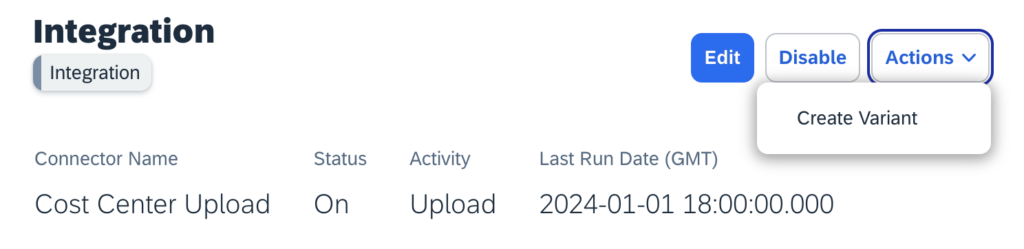
The first step is to analyze and identify the connector that corresponds to the object you want to integrate. Imagine a scenario where cost centers are created and updated with information from two different systems.
Next, using the Configuration Manager profile, create a variant by navigating to Action > Create Variant.
Most Important Definitions
When configuring a connector, there are several settings that allow customization. However, some of these settings have a significant impact, making the use of variants a best practice.
In this section, I will focus only on the most relevant fields, though there are other configuration options available during the connector activation wizard.
“Version” Field
This field determines the version of the connector to be used. Although the term “version” might suggest a more up-to-date connector, in reality, this field defines how the connector operates rather than its update status.
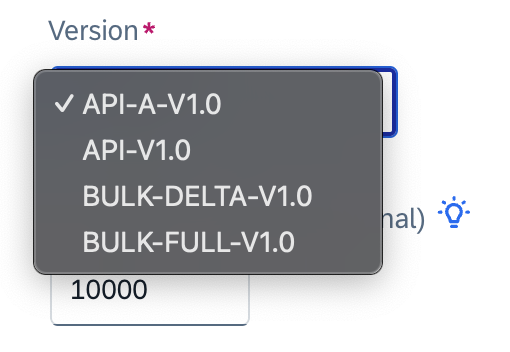
API (Application Programming Interface)
In this mode, each run is independent, meaning multiple uploads for the same connector can be executed simultaneously. This option is best suited for small to mid-sized record counts (less than 5,000 records). However, if the system goes down during the upload, the process will be interrupted and must be restarted from the beginning.
API-A (Application Programming Interface – Advanced)
This version functions similarly to the standard API but is slightly more optimized to handle larger data volumes (more than 5,000 records). A key advantage is that if the system goes down, the upload will automatically resume from where it left off.
BULK-DELTA
Delta uploads allow the transfer of a partial dataset (e.g., a subset of cost centers). In this mode, all cost centers can be sent to SAP Fieldglass, but only new or updated records will be processed. This version features a generic framework capable of handling any record size, from small to large. Additionally, if the system goes down, the process will automatically restart from the last successful point, making it more fault-tolerant than the API version.
BULK-FULL
This version is similar to BULK-DELTA, but instead of processing only updated records, it always processes a complete dataset (full file upload) each time the upload is executed.
During the initial load (e.g., cost centers), an internal table is created to store this initial dataset. Based on this, the bulk upload can identify deltas from the previous run, determining which records are new, updated, or deleted. Any records present in the previous file but missing from the current one are considered deletions. The system then compiles all adds, updates, and deletions into a single delta file, which is subsequently processed within the application.
“Delimiter” Field
Although optional, this field is extremely important as it allows multiple variants of the same object to receive files with different structures. This level of customization prevents the need for modifications in the legacy system, ensuring greater flexibility.
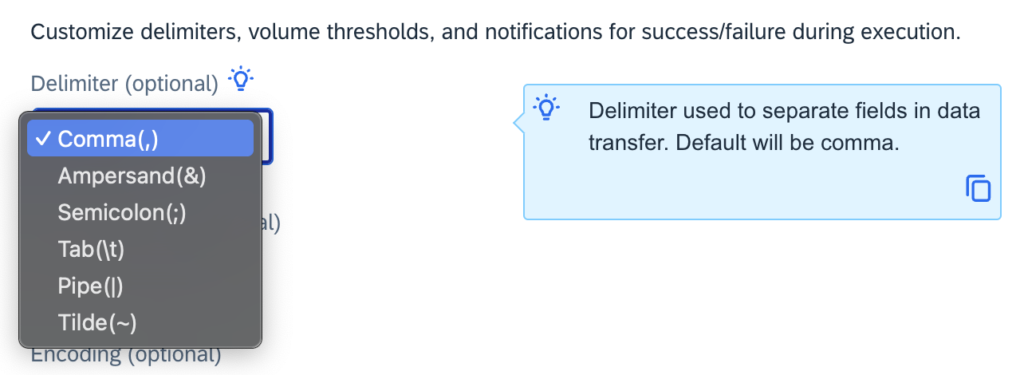
Additionally, this setting directly impacts data uploads via CSV. I have often encountered users who reported that their connectors were not working correctly, but in most cases, the issue was caused by a mismatch between the delimiter type configured in the connector and the one used in the uploaded file.
To avoid such issues, organizations should establish a global delimiter standard and apply it consistently across all systems, middleware, and even within users’ notebook configurations. This ensures seamless data integration and minimizes errors.
“Encoding” Field
The encoding field defines the character encoding format used to store and process text. Essentially, it determines how the system handles accented characters, especially in languages like French and Portuguese, as well as character-based languages such as Chinese.aracteres como o chinês.
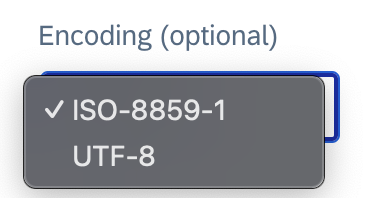
UTF-8 (Unicode Transformation Format – 8 bits) is a character encoding that supports virtually all characters used in different languages worldwide. It is based on Unicode, a universal standard for character representation. UTF-8 is efficient and compatible with modern systems, and personally, I don’t understand why all connectors don’t come with this encoding set by default.
On the other hand, ISO-8859-1 supports only 256 characters, covering basic accents and symbols for Western languages. It is an older standard and is rarely used today.
For this reason, it is always essential to use UTF-8, especially for data download connectors, as they will likely encounter errors when processing most special characters.
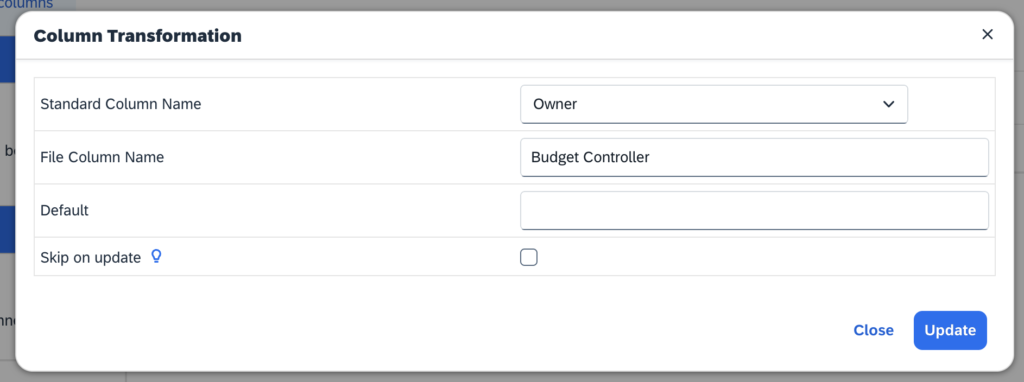
“Column Transformation” Section
This section exists only for upload connectors, meaning it applies exclusively to data entering the system. Essentially, the data structure cannot be modified here, as all possible fields are automatically predefined.
However, within this section, it is possible to create an alias for each field and define a default value for data entry when needed.
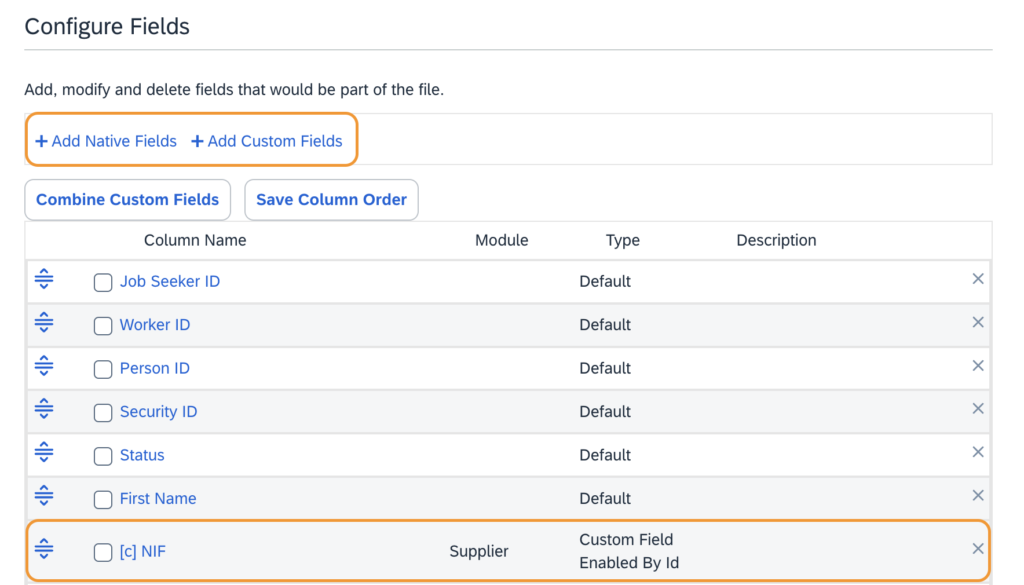
“Configure Fields” Section
This section exists only for download connectors, meaning it applies to data leaving the system. Unlike upload connectors, this section offers more flexibility, allowing different output structures for the same data.
For example, worker data can be integrated with both SuccessFactors and a turnstile access system, using different variants of the same connector.
Additionally, this section allows the inclusion of both custom and standard fields from different modules.
Conclusion
Integrating SAP Fieldglass with multiple systems presents several challenges, particularly when dealing with different data structures and formats. However, by leveraging variants, organizations can effectively customize connectors to meet the specific needs of each system while maintaining data integrity and efficiency.
Key configurations such as version selection, delimiter settings, and encoding format play a crucial role in ensuring seamless data integration. Properly defining these settings helps prevent common issues, such as mismatched delimiters or encoding errors, which can disrupt data processing.
By establishing standardized practices across systems, middleware, and user environments, organizations can enhance the reliability of their integrations and optimize data flows. Ultimately, a well-configured connector strategy ensures smoother, more efficient data exchanges.